ENG | Raspberry Pi Pico and C, Getting Started
There was already article like that introducing Raspberry Pi Pico and MicroPython if you want to know what is Raspberry Pi Pico and what it’s not. But basically it’s like much more capable, flexible and faster Arduino, but cheaper. Well, downside is higher power consumption (for battery powered projects) and not so large ecosystem. And it’s a microcontroller, not a computer like Raspberry Pi (3, 4, 5). Comparing it to computers is hard because it has lower memory bandwidth, also CPU is more simple, but it is likely somewhat close to 386 or early 486 cpus despite higher clock freqency.
This article describes how to set it up using Visual Studio Code on both Windows and Linux and expects some familiarity with it.
Note: article was heavily modified in September 2026 and basically assumes Linux.
Motivation
While C++ has a disadvantage in inconvenient firmware upload compared to MicroPython (until you find picotool), it offers several compelling benefits, such as at least two orders of magnitude faster execution speed, real-time signal processing, faster sensor sampling, smaller memory footprint, and DMA data transfers.
Steps
VS Code Plugin install
Preferably do this with fast, free internet connection and at least five gigabytes of free disk space. Installation can take about five to ten minutes. Installing plugin itself is fast, but once you create first project for a given platform, it takes time to download and install all tools to build application, such as compiler.
- On Linux, install dependecies: python3 git tar build-essentials or similar package with build tools
- Install visual code extension
Raspberry Pi Pico(id:raspberry-pi.raspberry-pi-pico). Plugin description is pointing to Getting started. It installs other extensions such as Cortex-Debug, debug-tracker-vscode, MemoryView, Peripheral Viewer, RTOS Views, Serial Monitor and possibly C/C++. Python and CMakeTools (I had these installed already). It addsRaspberry Pi Pico Projecticon to the left sidebar. Curiously, it has MicroPython support as well.
Create new project
- Click on
New C/C++ Project - Fill-in settings and click
Create
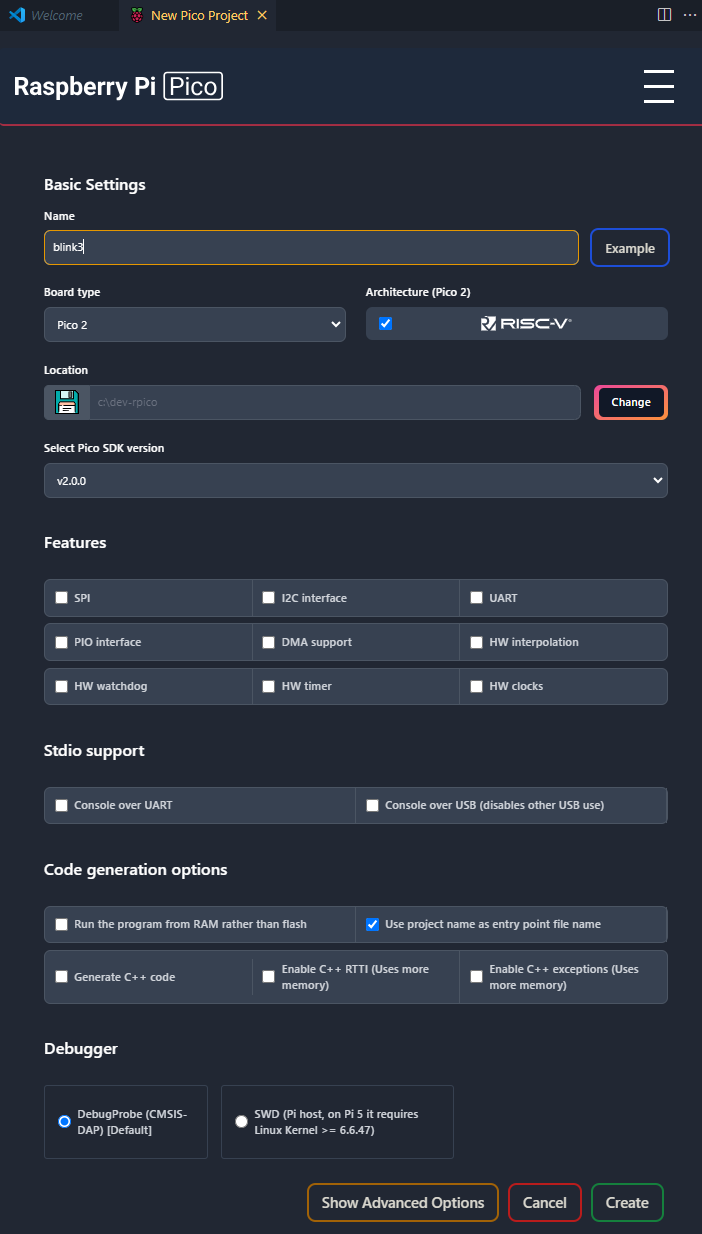 Project settings for Pico 2 using RISC-V core
 - Now it may download SDK either for ARM or RISC-V which takes time and can fail without any reasonable error after 5 minutes. Good luck.
- Project will be created even with some blink example using the following code
1
2
3
4
5
6
7
8
9
10
11
12
13
14
15
#include <stdio.h>
#include "pico/stdlib.h"

const unsigned int LED_PIN = 25;

int main() {
    gpio_init(LED_PIN);
    gpio_set_dir(LED_PIN, GPIO_OUT);
    while(true) {
        gpio_put(LED_PIN, 1);
        sleep_ms(20);
        gpio_put(LED_PIN, 0);
        sleep_ms(980);
    }
}
This example won’t work on Raspberry Pi Pico W or Pico 2 W: on wireless-enabled boards, the onboard LED is wired to the CYW43 wifi module instead of a regular GPIO pin, so it needs to be driven through the wifi driver, not gpio_put.
Run project
- Now (unplug and) plug Raspberry Pi Pico to your computer while holding
BOOTSELbutton. Raspberry Pi Pico should appear as USB drive. This soon becomes boring. - On the status panel in Visual Studio Code, press
Run. - Addendum 2026:: option is to use
picotoolwhich can be installed as a package on your distro. Nonetheless, it needs access to special device granted to user, otherwise it runs only via sudo. Fix is to download file fromhttps://github.com/raspberrypi/picotool/blob/master/udev/60-picotool.rules, copy it to either/etc/udev/rules.dor/lib/udev/rules.dand reload permissions1 2 3 4 5 6 7 8 9
# Download wget https://raw.githubusercontent.com/raspberrypi/picotool/refs/heads/master/udev/60-picotool.rules # Copy to proper directory sudo mv 60-picotool.rules /etc/udev/rules.d/ # Reload rules sudo udevadm control --reload-rules sudo udevadm trigger # Try picotool picotool info -a
- Picotool can set pico to boot mode
picotool reboot -f -u. Or even better,-fparameter allows to force reboot to BOOTSEL mode before executing command and then back to application. Something likepicotool load -f -x build/blinky.uf2uploads and executes blinky without all the manual exercise. Only problem is that it does not work when pico has for example Zephyr firmware and then it is detected as2fe3:0004 NordicSemiconductor CDC ACM serial backendwhichpicotoolcan’t recognize.
Pinout
It never hurts to find this 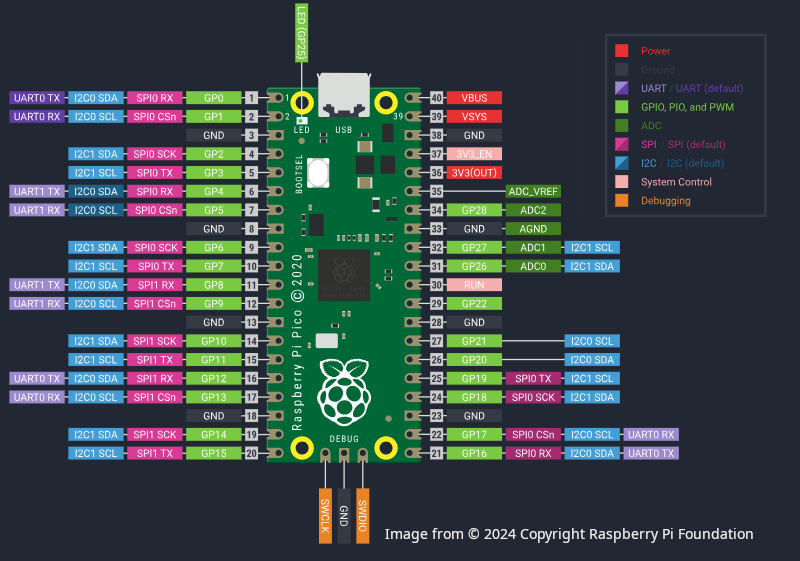
In Visual Studio Code it is accessible via Ctrl+Shift+P, MicroPico: Help > Show Pico Pin Map.
Summary
That’s all for the first program. In late 2024 I basically abandoned whole idea of learning Pico SDK in favor of MicroPython and/or another microcontrollers, because of need to hold BOOTSEL button while connecting microcontroller to USB. In autumn 2026 I learned picotool trick, because I wanted Pico for one project.
Also, question is what functionality is provided by Pico C library and what is provided for example by Zephyr OS or FreeRTOS. At the moment, I don’t know the answer - I did not dive into sleep, interrupts, DMA, wifi, HTTPS and so on (yet). RTOS is not true operating system, but rather something that allows interfacing hardware, allows some multitasking and maybe some multiplatform development
I tried Zephyr in 2025, but my projects were rather simple, only using SPI and I2C, my most advanced project used two threads (one sampling sensor data, other flushing buffer to flash memory) and shell.